
Git & GitHub - The Real Reason They Exist
Learn version control basics with Git and collaborative development using GitHub - understanding the real-world problems they solve
A session blog designed for first-year students with zero web background.
A Story
Imagine two classmates: Yassine and Amine.
They have a Java project for Professor Laghouaouta. Deadline: tomorrow at 23:59.
Yassine starts coding early:
login page, User class, some menu logic… everything seems fine.
At 18:00, Amine messages:
Send me the project bro, I'll help.
Yassine zips the folder:
project-v1.zip
and sends it on WhatsApp.
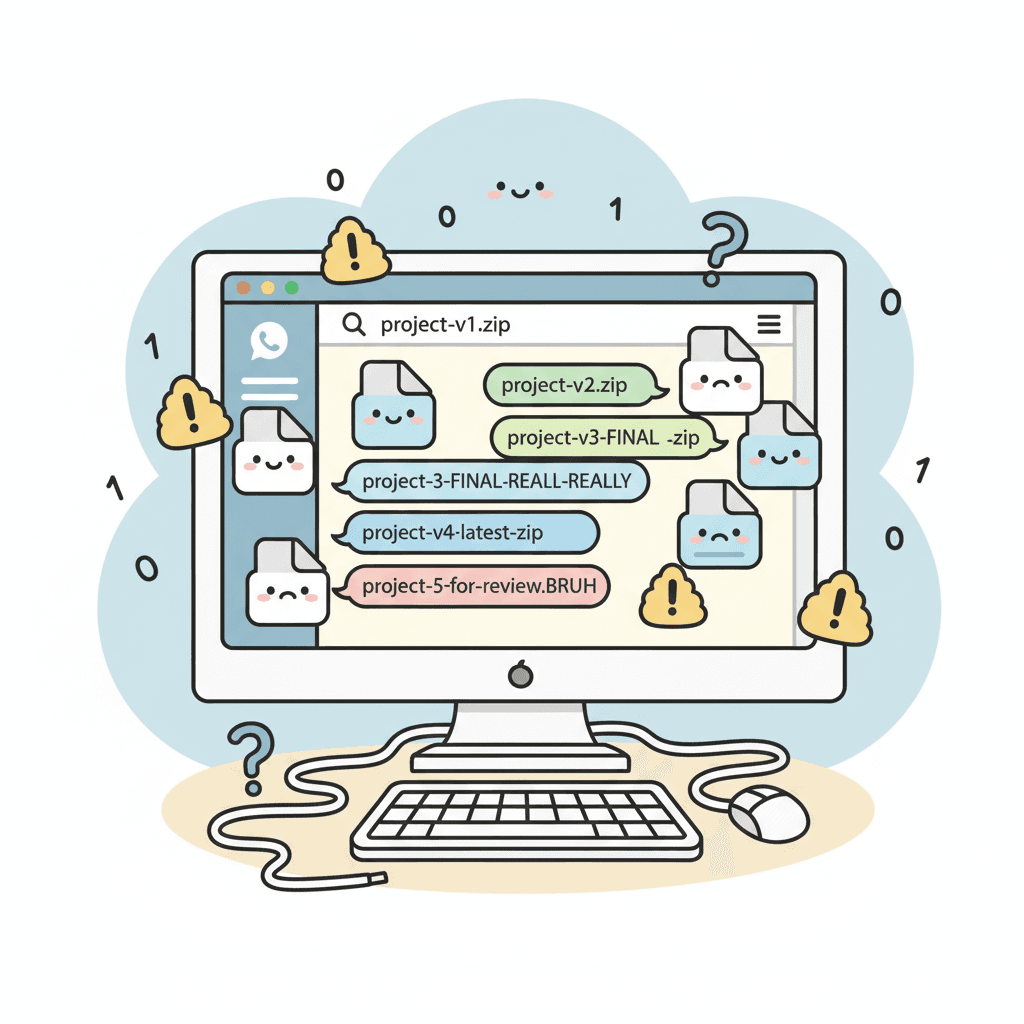
Amine works on reservations, modifies a few classes, and sends back:
project-v2.zip.
Meanwhile, Yassine ALSO kept coding on his side…
so HE now sends:
project-v3.zip.
Now:
- Yassine modified
Main.java - Amine ALSO modified
Main.java - Both changed
UserService.java - Both added different logic in the SAME methods
Who's right? Which version works? How do they merge?
They start manually comparing files. Copy lines, delete lines, guess which version is correct…
Chaos.
Something breaks → then something else breaks → then compilation errors everywhere.
And at 23:40, they're staring at:
project-v2.zipproject-v3.zipproject-v3-final-FINAL.zip
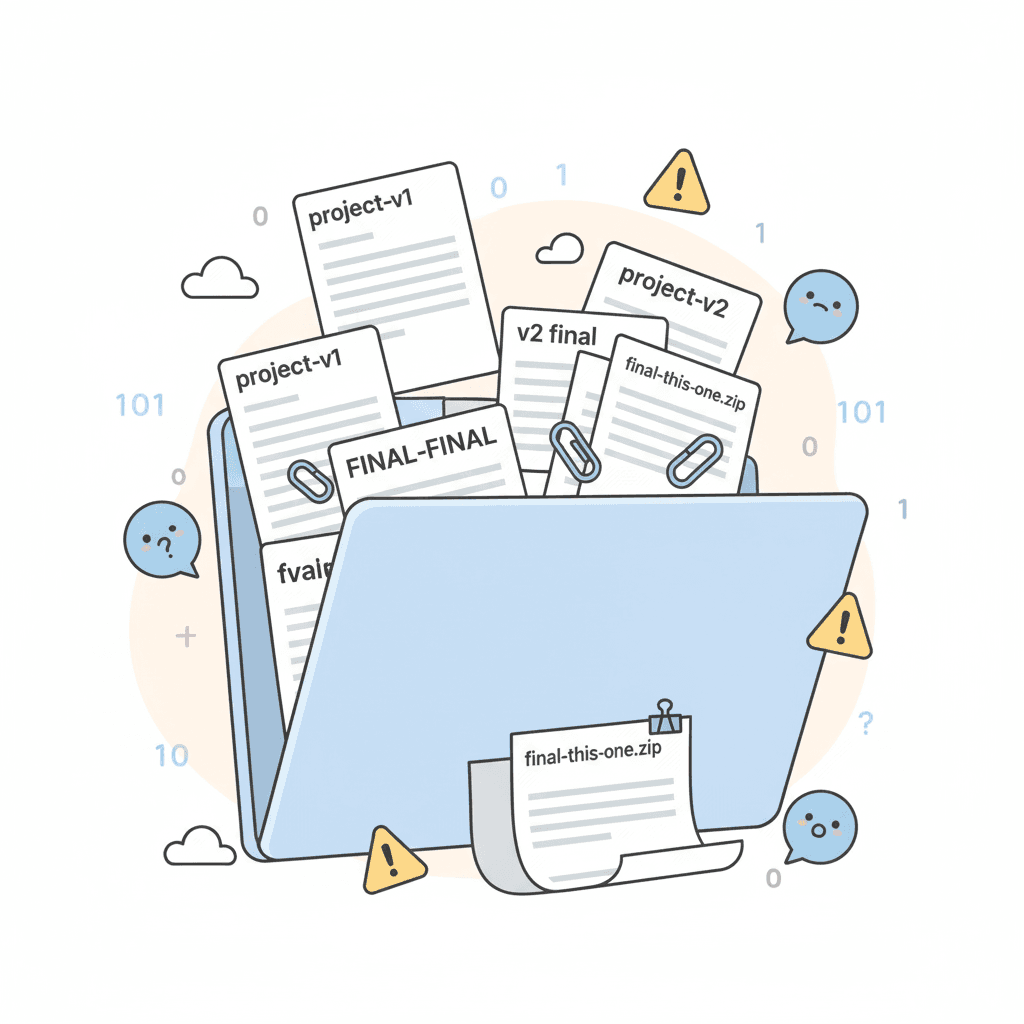
At this point, they're just thinking:
Wili… ratt kay3eyet.
This is what real-world coding without Git looks like. A mess.
The REAL Pain Git Solves
Coding without Git means:
- sending zip files
- manually merging work
- overwriting each other
- losing working versions
- naming files
v1/v2/final/final-final - wasting HOURS fixing conflicts
The core problem:
There is no system for tracking versions or merging contributions.
Why Git Exists
Instead of manually versioning files like:
file_v1.javafile_v2.javafile_v2_fixed.javafile_final_really_final.java
Git does ALL of this automatically.
Git keeps an entire history of your project:
- what changed
- when it changed
- who changed it
- and lets you go back to ANY previous version safely
No more WhatsApp zips. No more overwriting. No more mess.
Why GitHub Exists
GitHub is simply:
A cloud platform where your Git project lives and can be shared with teammates.
That's it.
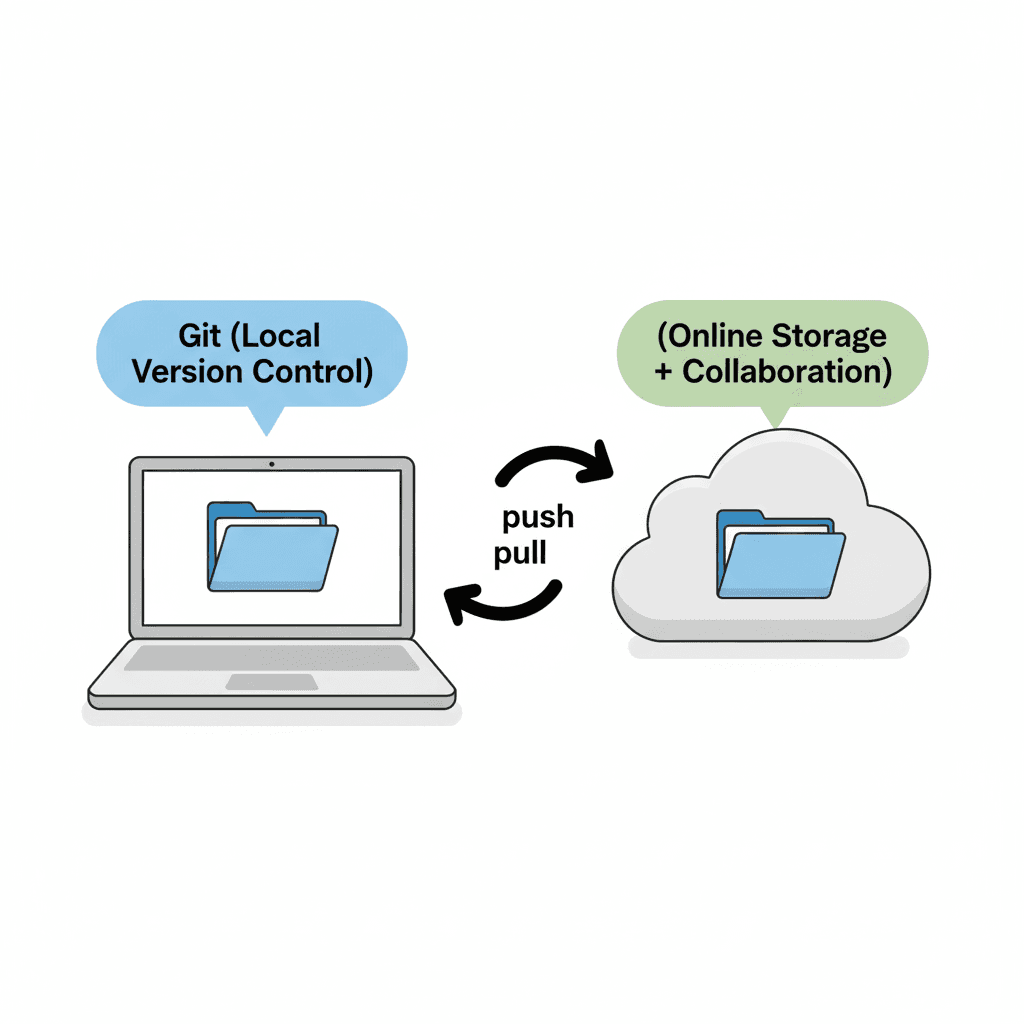
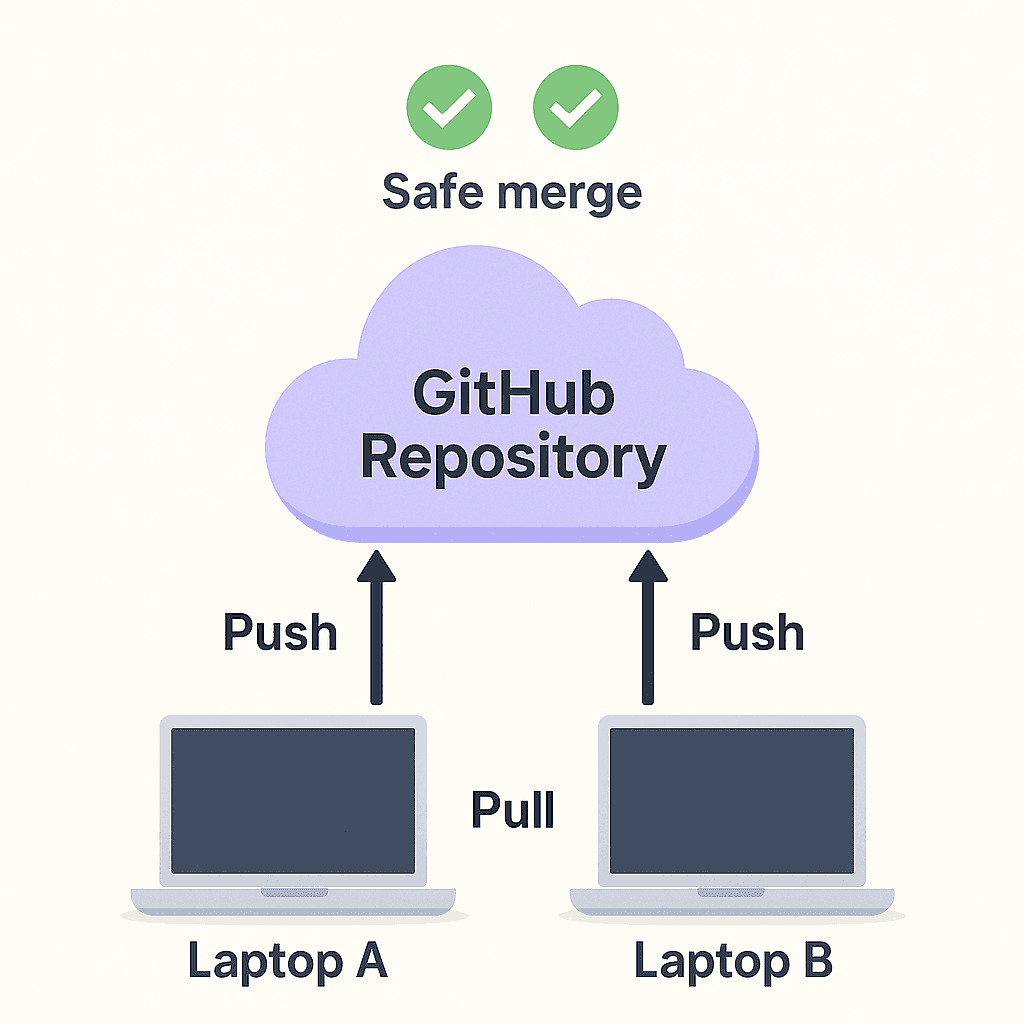
GitHub is where Yassine and Amine would collaborate:
- Yassine pushes his code
- Amine pulls the new changes
- Git merges them intelligently
- No overwriting
- No guessing
- No conflicts by accident
The Only 3 Concepts You Need
We focus only on the essentials.
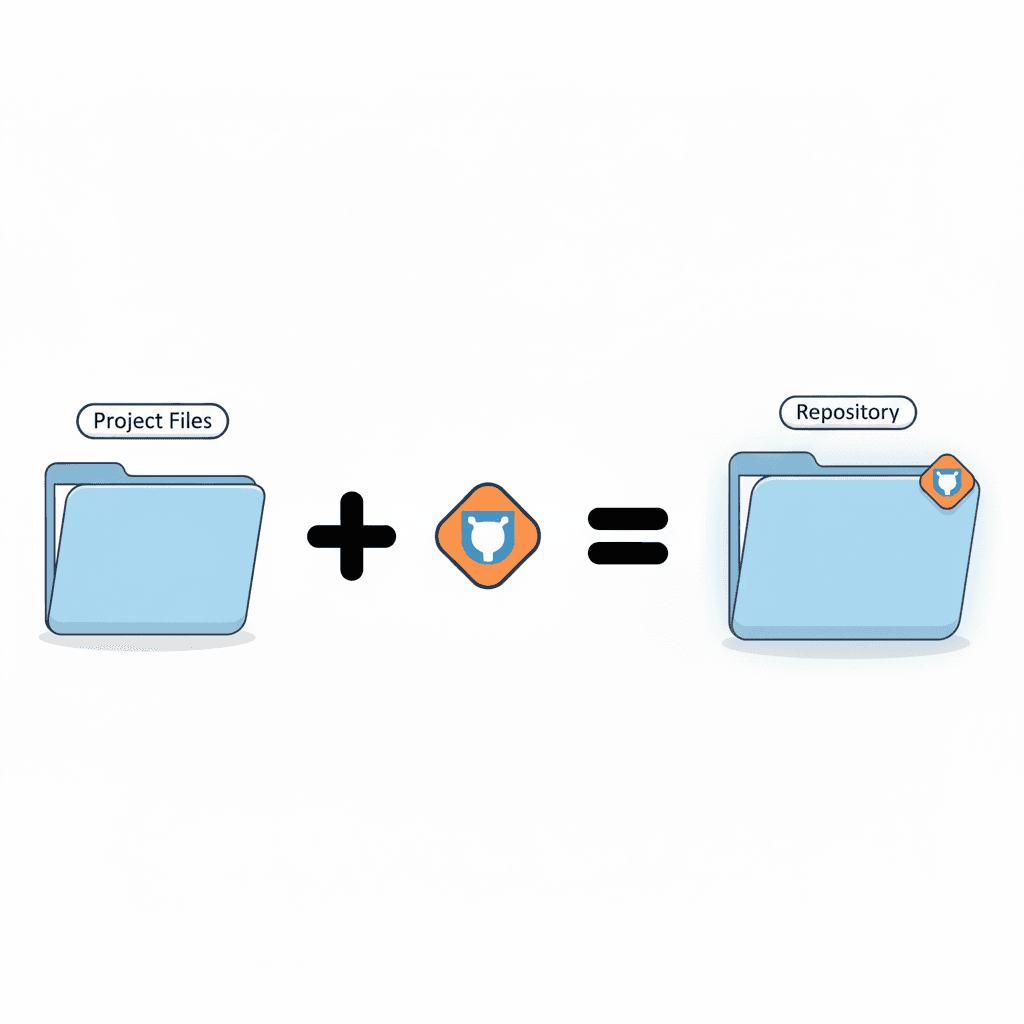
1. Repository (Repo)
A repo is just:
Your project folder + Git tracking enabled.
Nothing magical.
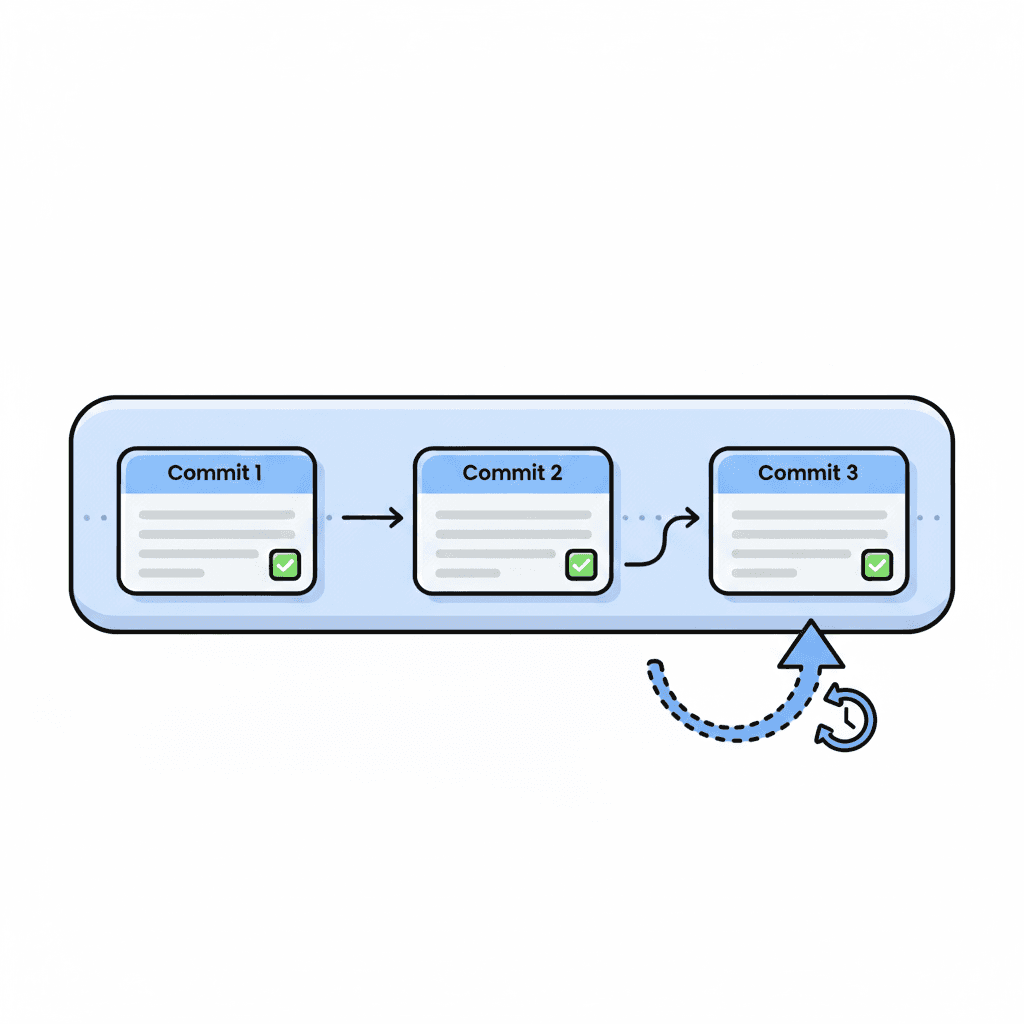
2. Commit
A commit is a snapshot of your code at a specific moment.
Examples:
- "Add login feature"
- "Fix reservation bug"
- "Implement User class"
Each commit is a clean restore point.
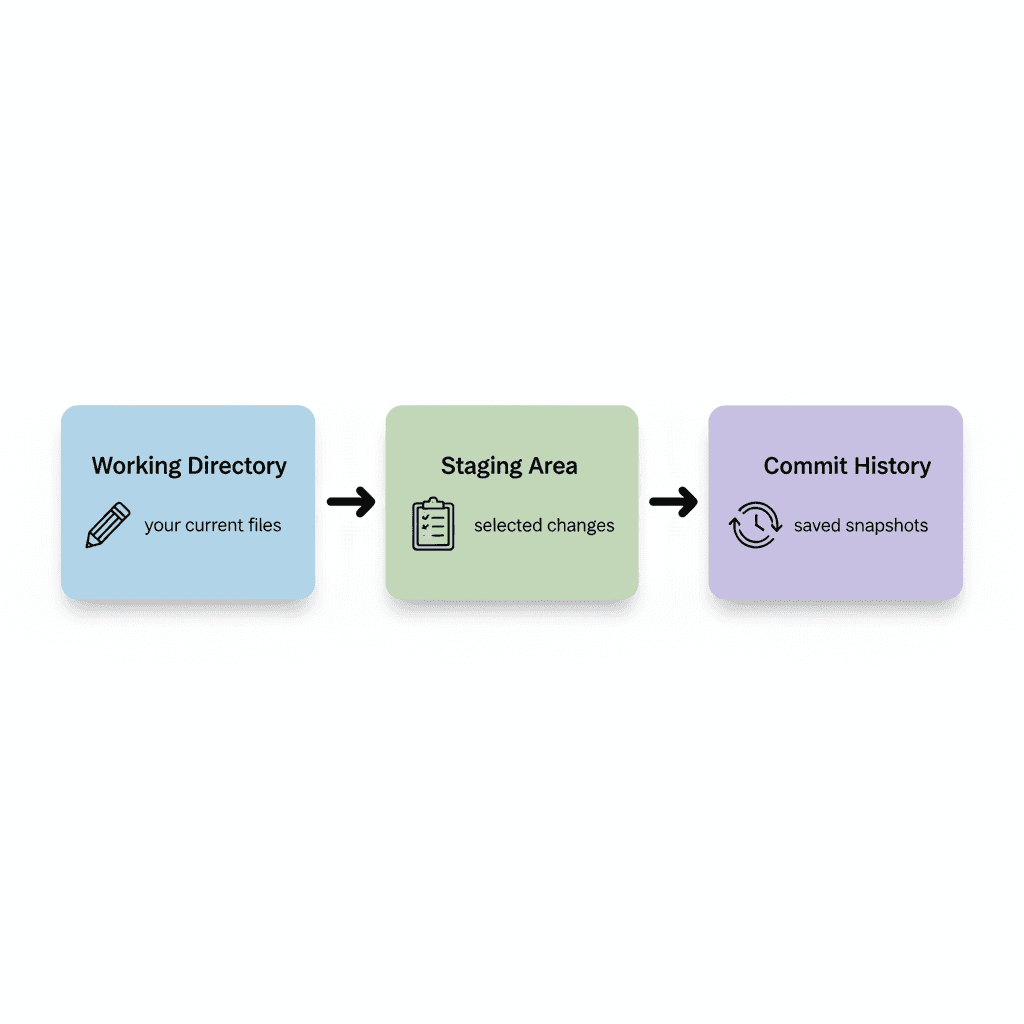
3. Staging Area
Before you save a snapshot, Git lets you choose what you want to include.
Working Directory → Staging Area → Commit History
Simple. Visual. Logical.
The 5 Commands That Matter
These are the only ones you'll use today.
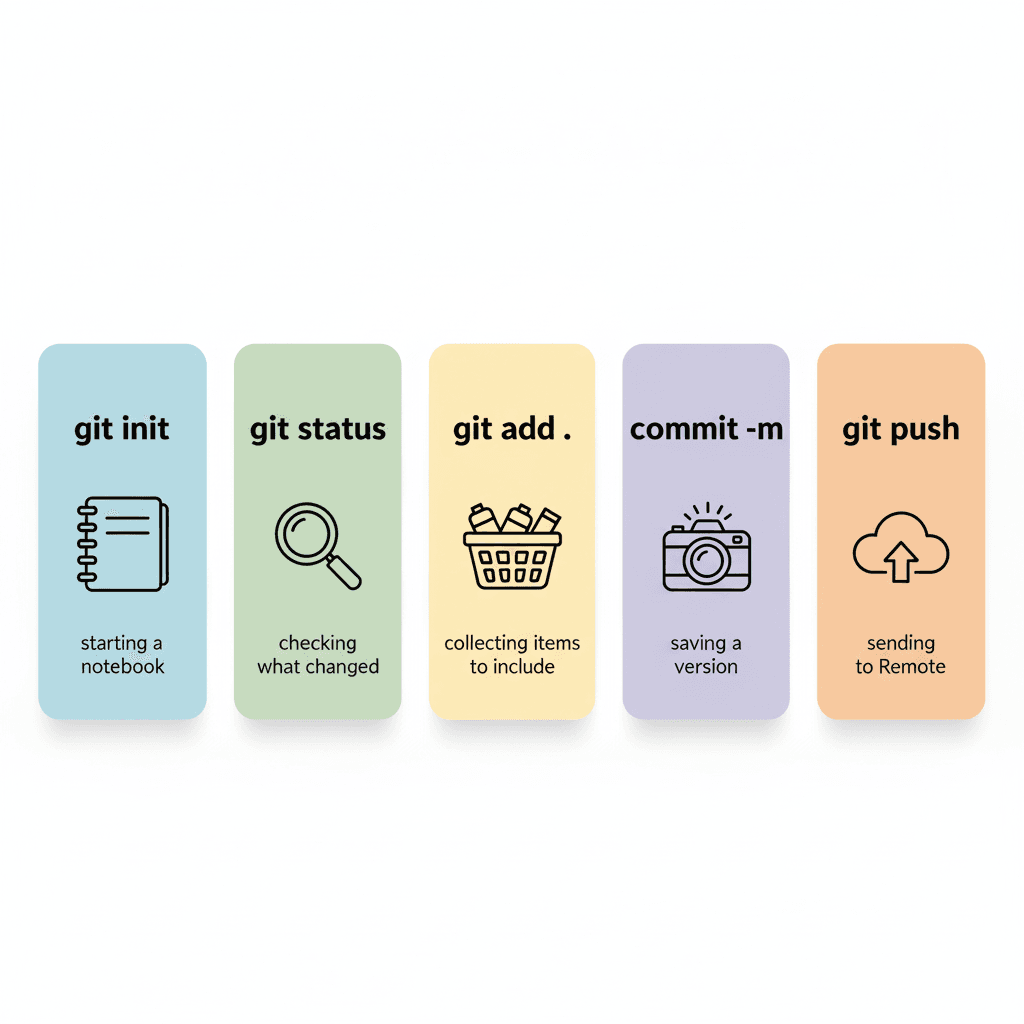
Initialize Git
git init
See what changed
git status
Stage all files
git add .
Save a snapshot
git commit -m "message"
Upload to GitHub
git push
This is 90% of Git.
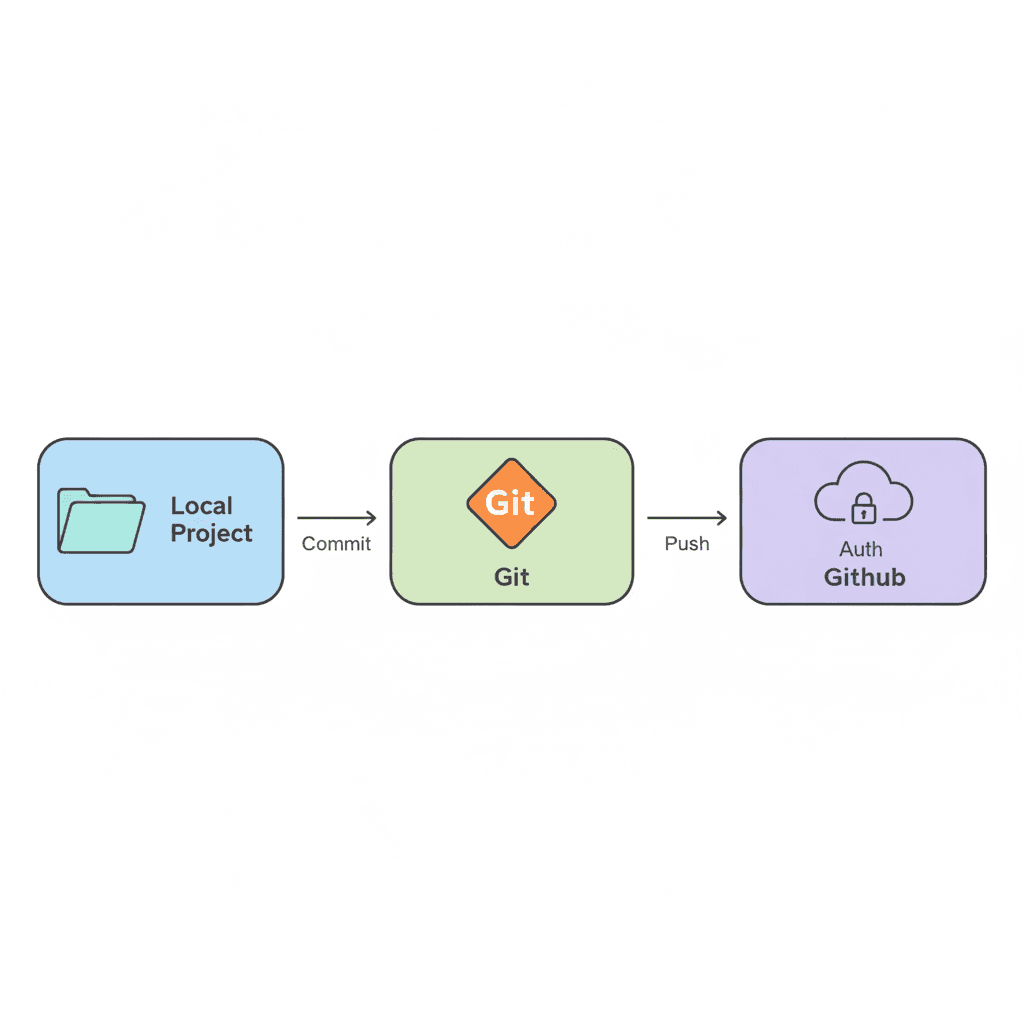
Authenticating With GitHub (Modern Way)
GitHub no longer accepts passwords when pushing code.
You must use a Personal Access Token (PAT).
Steps:
- Go to: https://github.com/settings/tokens
- Click Generate new token (classic)
- Give it
repopermission - Generate → copy the token
- When Git asks for "password", paste this token
This token replaces your GitHub password in the terminal only.
You usually paste it once per machine — your system saves it.
Mini Live Demo (Simple & Light)
1. Create a project folder
Open in VS Code.
2. Initialize Git
git init
3. Create a file
Example: index.html
4. Stage & commit
git add .
git commit -m "Initial commit"
5. Create a GitHub repo
On GitHub → New Repository → name it.
GitHub will show you something like:
git remote add origin https://github.com/yourname/repo.git
git push -u origin main
Just copy whatever GitHub gives you.
6. First push = authentication moment
When you run:
git push -u origin main
Git asks for:
Username for 'https://github.com':
Password for 'https://github.com':
Tell them:
- Username → your GitHub username
- Password → paste your Personal Access Token (PAT)
Press Enter. And boom — your code is online.
Your device usually remembers this, so Git won't ask again.
What You Should Leave With
- Git = version history
- GitHub = collaboration in the cloud
- Commit = snapshot
- PAT = your terminal password (paste it once)
- Push to share, pull to receive
If they understand these 5 points, the session is a total success.