The DOM, querySelector & Events
Learn how to access and interact with HTML elements using JavaScript, and respond to user actions with event listeners
Now it's time to make your web pages interactive! Let's learn how JavaScript talks to HTML.
4. The DOM (Document Object Model)
What is the DOM?
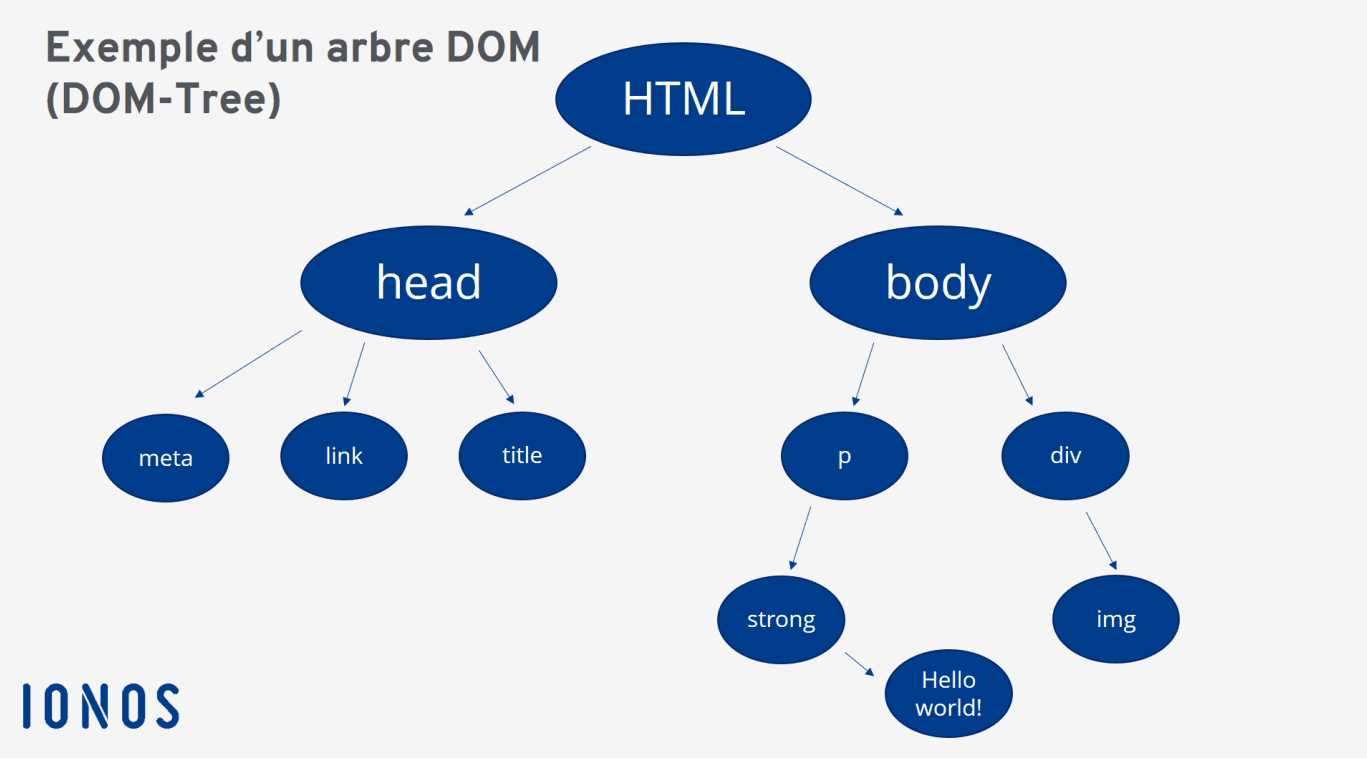
The DOM is a tree-like structure that represents your HTML document. JavaScript can access and modify this tree to change what users see on the page.
Think of it like this:
document
  └── html
      ├── head
      │   ├── title
      │   └── meta
      └── body
          ├── h1
          ├── p
          └── button
HTML Example
<!DOCTYPE html>
<html>
<head>
  <title>My Page</title>
</head>
<body>
  <h1 id="title">Welcome</h1>
  <p class="description">This is a paragraph.</p>
  <button id="myButton">Click Me</button>
</body>
</html>
JavaScript can access any of these elements and change them!
5. document.querySelector
What is querySelector?
document.querySelector is a method that finds and returns the first HTML element that matches a CSS selector.
Syntax
const element = document.querySelector("css-selector");
Selecting by Tag Name
// Select the first <h1> element
const heading = document.querySelector("h1");
console.log(heading); // <h1>Welcome</h1>

// Select the first <p> element
const paragraph = document.querySelector("p");
console.log(paragraph); // <p>This is a paragraph.</p>
Selecting by ID
Use # before the ID name (just like in CSS).
<div id="container">Content here</div>
const container = document.querySelector("#container");
console.log(container); // <div id="container">...</div>
Selecting by Class
Use . before the class name (just like in CSS).
<p class="info">Information text</p>
<p class="info">More information</p>
// Gets only the FIRST element with class "info"
const firstInfo = document.querySelector(".info");
console.log(firstInfo); // <p class="info">Information text</p>
Selecting Multiple Elements
Use querySelectorAll to get all matching elements (returns a list).
<div class="box">Box 1</div>
<div class="box">Box 2</div>
<div class="box">Box 3</div>
const allBoxes = document.querySelectorAll(".box");
console.log(allBoxes.length); // 3

// Loop through all boxes
allBoxes.forEach((box, index) => {
  console.log("Box " + (index + 1) + ": " + box.textContent);
});
Complex Selectors
You can use any CSS selector!
// Select button inside a div with class "container"
const button = document.querySelector(".container button");

// Select all paragraphs inside an article
const paragraphs = document.querySelectorAll("article p");

// Select element with specific attribute
const emailInput = document.querySelector('input[type="email"]');
6. Events
What are Events?
Events are actions that happen in the browser:
- User clicks a button
- User types in an input field
- Page finishes loading
- Mouse moves over an element
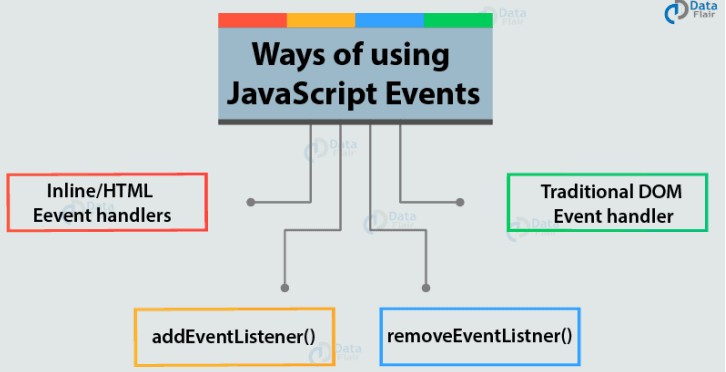
JavaScript can listen for these events and react to them.
Common Event Types
| Event | When it happens |
|---|---|
click | Element is clicked |
dblclick | Element is double-clicked |
mouseover | Mouse moves over element |
mouseout | Mouse leaves element |
keydown | Key is pressed |
keyup | Key is released |
submit | Form is submitted |
change | Input value changes |
load | Page finishes loading |
Adding Event Listeners (Method 1: JavaScript)
This is the recommended way to handle events.
Syntax:
element.addEventListener("eventType", function);
Example 1: Simple Click Event
<button id="myButton">Click me</button>
<p id="message"></p>
const button = document.querySelector("#myButton");
const message = document.querySelector("#message");

button.addEventListener("click", () => {
  message.textContent = "Button was clicked!";
});
Example 2: Using a Named Function
const button = document.querySelector("#myButton");

function handleClick() {
  alert("Hello, World!");
}

button.addEventListener("click", handleClick);
Example 3: Getting Event Information
const button = document.querySelector("#myButton");

button.addEventListener("click", (event) => {
  console.log("Event type:", event.type);      // "click"
  console.log("Element clicked:", event.target); // <button>
  console.log("Mouse position X:", event.clientX);
  console.log("Mouse position Y:", event.clientY);
});
Adding Event Listeners (Method 2: Inline HTML)
You can also add event handlers directly in your HTML using attributes like onclick.
Example:
<button onclick="showMessage()">Click me</button>

<script>
  function showMessage() {
    alert("Button clicked!");
  }
</script>
Another example with inline code:
<button onclick="alert('Hello!')">Say Hello</button>
Multiple Events on Same Element
const box = document.querySelector("#box");

box.addEventListener("mouseover", () => {
  box.style.backgroundColor = "yellow";
});

box.addEventListener("mouseout", () => {
  box.style.backgroundColor = "white";
});

box.addEventListener("click", () => {
  box.style.backgroundColor = "blue";
});
Events on Multiple Elements
<button class="btn">Button 1</button>
<button class="btn">Button 2</button>
<button class="btn">Button 3</button>
const buttons = document.querySelectorAll(".btn");

buttons.forEach((button, index) => {
  button.addEventListener("click", () => {
    alert("You clicked button " + (index + 1));
  });
});
What's Next?
In Part 4, we'll learn DOM Manipulation - how to change text, styles, and structure of your web pages dynamically! 🎨